WhatsApp sharing
Send transactional documents from the screen where staff already work. Use free Click-to-Chat for a reviewed, manual send, or connect Meta Cloud API for queued delivery and status tracking.
Choose a delivery mode
| Mode | How it works | Best for |
|---|---|---|
| Click-to-Chat | Opens WhatsApp Web or the phone app with the recipient and message filled in. Staff confirm the send themselves. | Quick setup, occasional documents and businesses that do not need automated delivery. |
| Automatic API delivery | Queues the message through an official Meta Cloud API connection and records provider delivery updates. | Higher volume, automatic receipts, delivery tracking and bulk statement reminders. |
Click-to-Chat works without Meta API credentials. Its delivery log records the message as Prepared because POS cannot know whether the user tapped Send in WhatsApp.
Set up company and store connections
Open Settings → WhatsApp. Choose one company-wide default connection, then add store-level overrides only when a store has different sender details.
Option 1: Meta Cloud API (automatic delivery)
- Create your Meta app and WhatsApp sender
In Meta, add WhatsApp to your Meta App, connect the Business Manager, and complete sender registration for a WhatsApp phone number.
- Open WhatsApp connections in POS
Go to Settings → WhatsApp → Add connection. Select provider Meta, then Mode: Automatic.
- Fill required credentials
Use these fields exactly:
- Phone Number ID
- Access Token
- App Secret
- Verify Token
- Graph Version (default is prefilled)
- WABA ID (optional, if shown by your Meta setup)
- Sender phone for Click-to-Chat fallback, optional for automatic mode
Use system settings for sender number format, company/store scope, and retention.
- Save the connection and map templates
Save the connection, then add template names and languages for each document type under the same page (for example: sale_receipt, quotation, customer_statement, etc.).
- Test the credentials
Click Test connection and confirm status is Connected.
- Set Meta webhook URL
Copy Webhook URL from the connection view and add it in Meta Webhook Settings. Use the same Verify Token you entered in POS.
- Send a test template
Use Test message and send
hello_worldin a safe test number to verify end-to-end receiving.
Option 2: Click-to-Chat only (no Meta API)
- Open WhatsApp settings
Go to Settings → WhatsApp.
- Choose mode for existing or new connection
When adding a connection or editing it, set Mode to Click-to-Chat.
- Keep Meta fields blank
Do not fill phone_number_id, access token, app secret, or verify token when mode is Click-to-Chat.
- Save and use
Save the connection. POS will open WhatsApp with prepared text on send; the staff member must press Send from WhatsApp Web or mobile app.
- Add multiple sender numbers if needed
Use one store connection with its own sender phone number for stores that have different WhatsApp contacts.

Automatic delivery needs more than valid credentials. Meta may require an approved utility template and language mapping for each document type. When an automatic mapping is unavailable, POS falls back honestly to Click-to-Chat instead of claiming an API message was queued.
Share a document
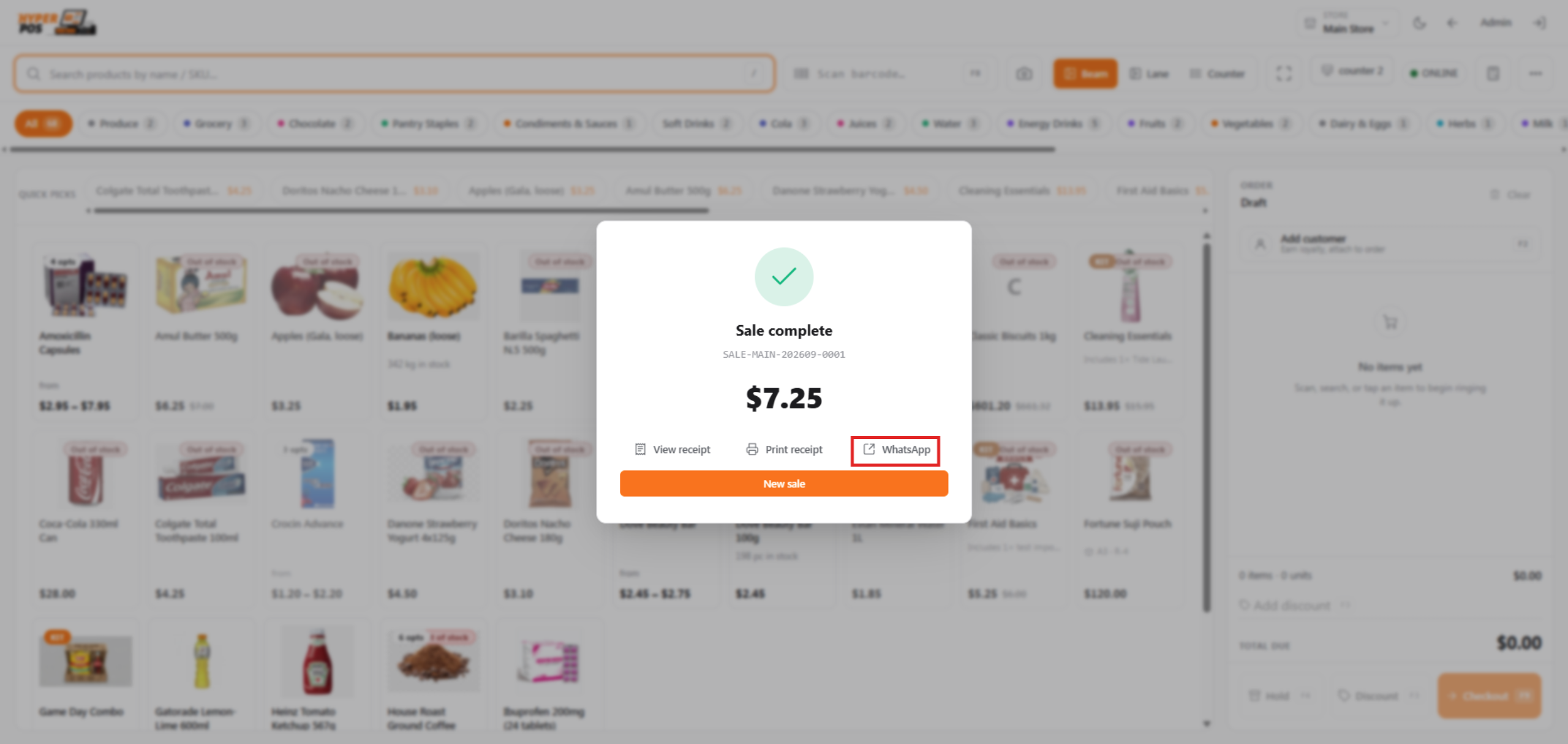
Open the sale, quotation, credit note, customer statement, customer payment or supplier payment. Click Send via WhatsApp. POS uses the saved WhatsApp number when possible and asks for one when the document has no suitable recipient.
- Confirm the recipient
Use a valid phone number with its country code. Local numbers can be normalized when the store or company country is configured.
- Send in the resolved mode
Click-to-Chat opens a prepared message for staff review. Automatic mode queues the approved template in the background, so the sale or payment itself does not wait for Meta.
- Open the secure document link
Receipts and quotations include their signed public links where supported, so the customer can view the correct document without an admin account.
Track delivery and retry failures
Open Settings → WhatsApp → WhatsApp delivery log to filter messages by status, recipient or date. Automatic messages progress through Queued, Sent, Delivered and Read as provider updates arrive. A sanitized failure reason is shown when delivery fails; after correcting the cause, an authorized user can retry a failed automatic message.
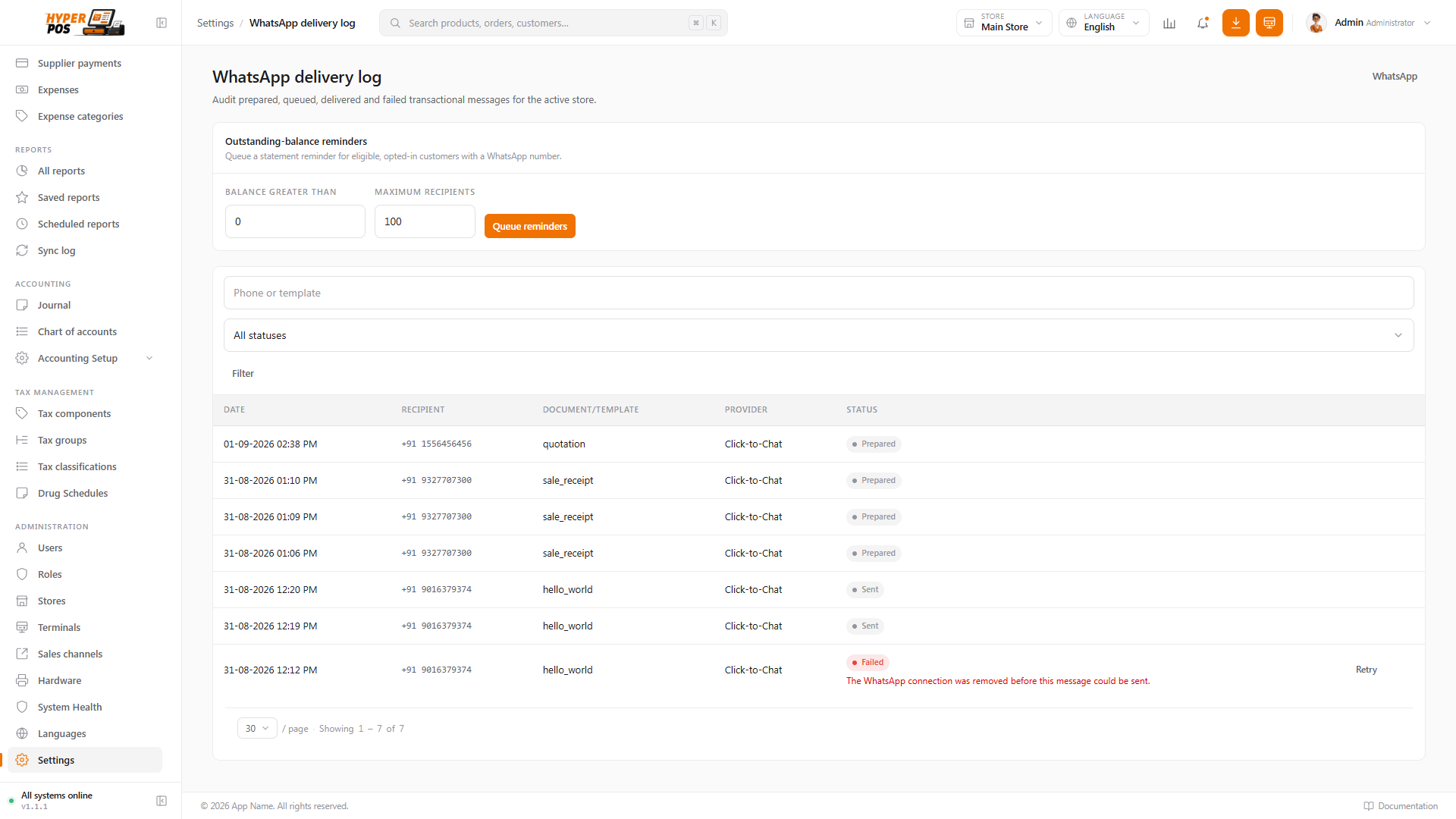
Authorized staff can also queue outstanding-balance statement reminders from this page after setting a minimum balance and maximum count. This requires a connected automatic mode and the required statement template.
Tips and safeguards
- Save WhatsApp numbers in international format, for example
+919876543210. - Use demo customer and supplier records when testing; never put secrets or real private data into screenshots.
- Keep the queue worker and scheduler running for automatic delivery, retries and log retention.
- Only staff with the matching document and WhatsApp permissions can send, view delivery logs, retry failures or edit credentials.
- A customer who is marked as opted out cannot receive either delivery mode.
Related: Digital receipts · Quotations · Customers · Customer payments · Supplier payments · Cron job setup